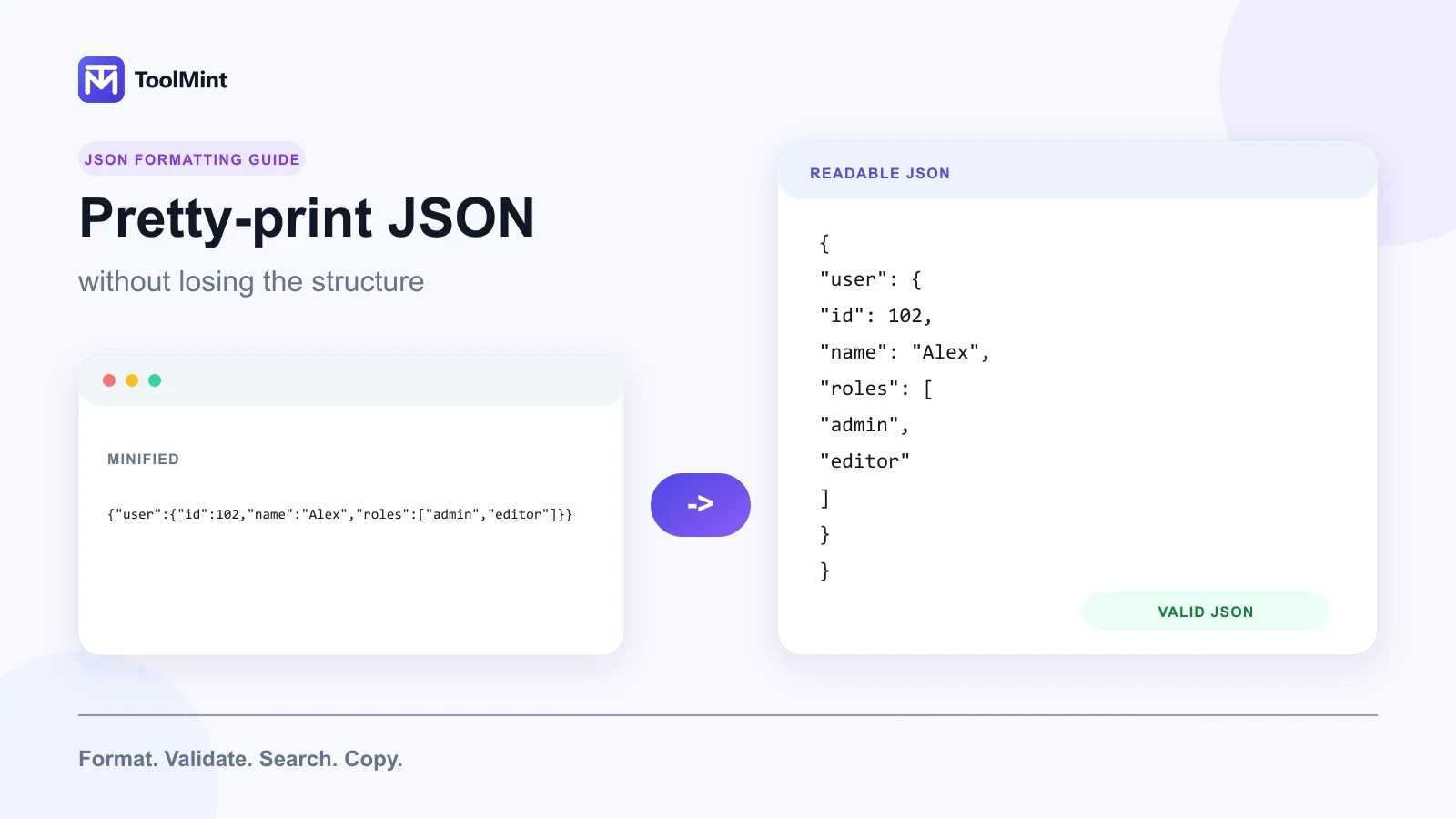
A minified JSON response can turn a simple debugging task into a slow search through brackets, commas and nested values. Pretty printing solves that problem by adding consistent indentation and line breaks, making the structure easier to inspect without intentionally changing the parsed data.
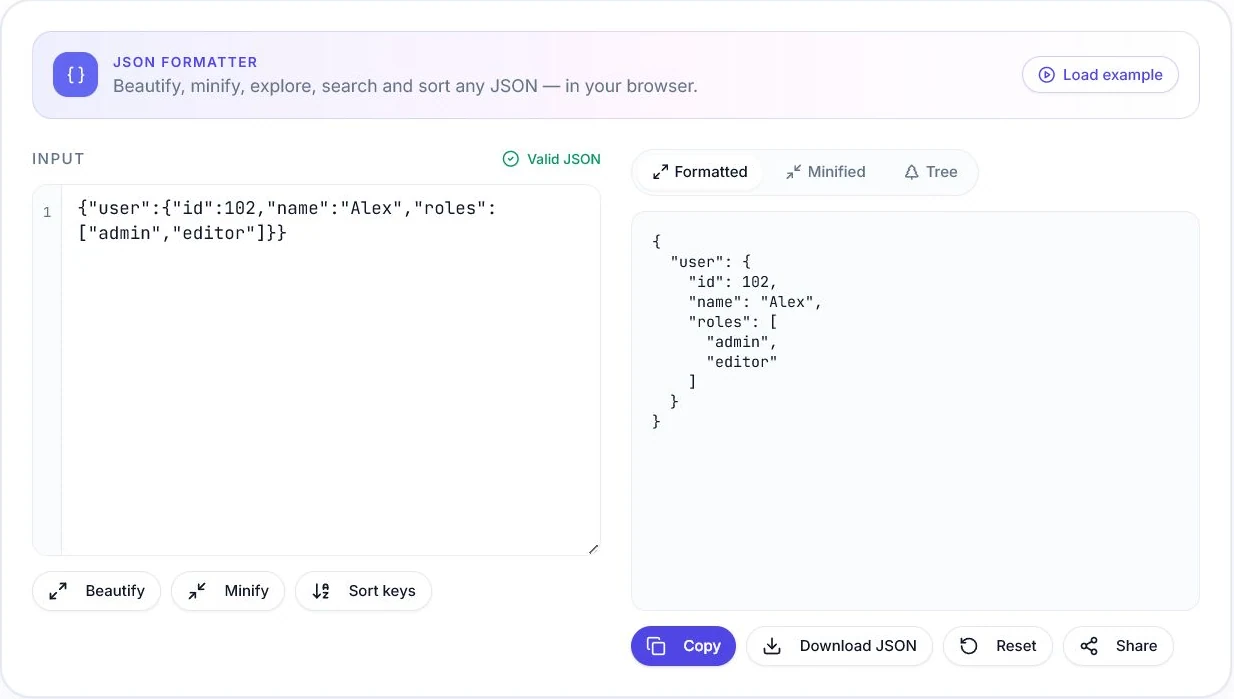
The fastest browser workflow is straightforward: paste the JSON into the ToolMint JSON Formatter, format it, review any validation errors, search or inspect the nested structure, and copy the result when it is ready.
Quick answer: Pretty printing makes JSON easier for people to read. Validation checks whether the input follows JSON syntax. Minification performs the opposite presentation step by removing unnecessary whitespace.
ToolMint's formatter accepts JSON pasted or typed into its editor. It does not include a JSON file-upload control.
What does it mean to pretty-print JSON?
Pretty printing—also called formatting or beautifying—turns compact JSON into a readable layout with indentation and line breaks.
A minified object might look like this:
{"user":{"id":102,"name":"Alex","active":true,"roles":["admin","editor"]}}The same values can be displayed as:
{
  "user": {
    "id": 102,
    "name": "Alex",
    "active": true,
    "roles": [
      "admin",
      "editor"
    ]
  }
}
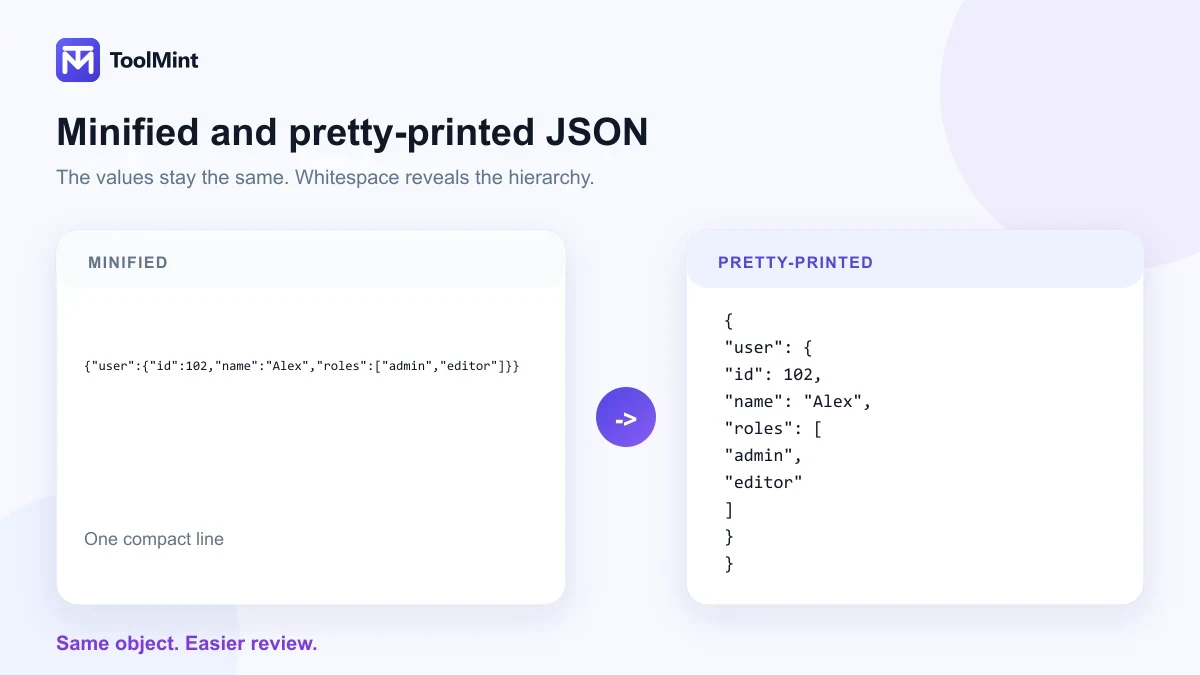
The second version makes the hierarchy visible:
useris an object;rolesis an array inside that object;id,nameandactiveare sibling properties;- opening and closing brackets are easier to match.
Pretty printing normally preserves the parsed values while changing whitespace and indentation. Some optional actions—especially sorting object keys—also change the textual order of the document, so they should be used deliberately.
Why formatted JSON is easier to work with
The nesting becomes visible
JSON can contain objects inside arrays, arrays inside objects and multiple levels of nested data. Indentation gives each level a clear visual position.
This matters when reviewing:
- REST or GraphQL API responses;
- application configuration files;
- webhook payloads;
- analytics events;
- package and deployment settings;
- JSON-LD structured data;
- exported records;
- log entries containing structured fields.
Syntax problems are easier to locate
A parser may reject an entire document because of one missing comma, unmatched bracket or invalid quote. Formatting does not repair every error, but a validator can expose the likely problem before the JSON is copied into an application or sent to an endpoint.
Reviews become faster
Readable JSON is easier to compare in code reviews, support tickets and technical documentation. Team members can discuss a specific property or object without scanning one long line.
Minification remains available when needed
Readable formatting is useful during development and review. Minified output is useful when whitespace is unnecessary and compact text is preferred.
The important point is that formatting and minification are presentation choices. Neither one makes incorrect JSON valid.
How to pretty-print JSON with ToolMint
Step 1: Paste the JSON
Open the ToolMint JSON Formatter and place the raw JSON in the input area.
For example:
{"project":"ToolMint","category":"Developer","tools":["JSON Formatter","Text Diff Checker"],"active":true}Before using any browser utility, remove secrets that are not required for the task. Avoid pasting live API keys, access tokens, passwords, session cookies or confidential customer data.
Step 2: Format the document
Choose Beautify to separate properties onto readable lines and indent nested objects and arrays consistently. ToolMint uses fixed two-space indentation:
{
  "project": "ToolMint",
  "category": "Developer",
  "tools": [
    "JSON Formatter",
    "Text Diff Checker"
  ],
  "active": true
}
ToolMint does not provide a four-space or tab indentation selector. Use a code editor or command-line formatter when a project requires another indentation convention.
Step 3: Review validation feedback
Valid JSON must follow strict syntax rules. When the parser finds a problem, review the available error message and the surrounding characters.
Error wording can vary by browser and parser. A message such as Unexpected token identifies the failure type, but the real cause may be immediately before the reported position.
Step 4: Search and inspect the structure
For a long document, switch to Tree view. Its search field matches property names and values, while the expand and collapse controls help inspect nested sections. Use duplicate-key warnings to identify ambiguous objects.
Step 5: Sort keys only when it helps
Alphabetical sorting can make two objects easier to compare, especially when they contain the same properties in different orders.
Do not sort automatically when:
- exact serialized text must be preserved;
- a digital signature or checksum depends on the original bytes;
- insertion order communicates meaning to human readers;
- the output is being compared with a canonical representation;
- another system expects an unchanged textual form.
Step 6: Copy the formatted or minified result
Copy the readable output for debugging, documentation or review. Use minified output when a compact representation is required.
Common JSON syntax errors
Strict JSON is less permissive than a JavaScript object literal. Content that works inside JavaScript source code may still fail in a JSON parser.
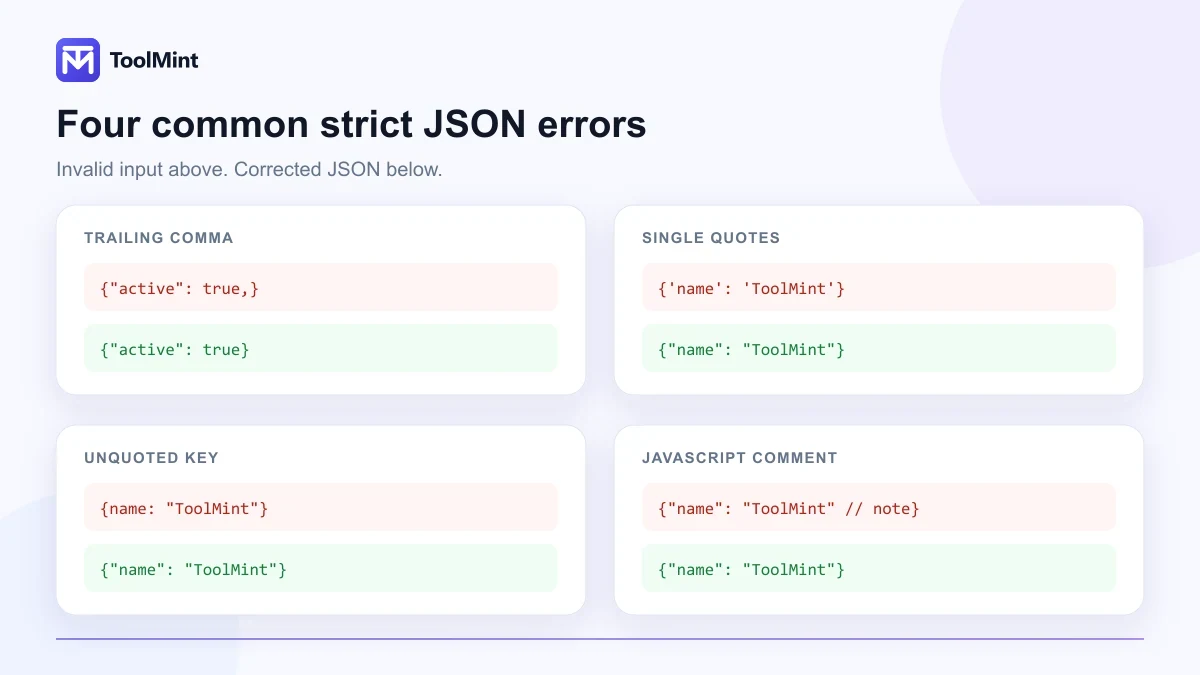
Trailing commas
Invalid:
{
  "name": "ToolMint",
  "active": true,
}
Valid:
{
  "name": "ToolMint",
  "active": true
}
A comma separates members. It cannot appear after the last member of an object or the last item in an array.
Single-quoted strings
Invalid:
{'name': 'ToolMint'}Valid:
{
  "name": "ToolMint"
}
JSON strings and object names use double quotes.
Unquoted object names
Invalid:
{
  name: "ToolMint"
}
Valid:
{
  "name": "ToolMint"
}
JavaScript permits unquoted identifiers in many object literals. Strict JSON does not.
Missing commas
Invalid:
{
  "name": "ToolMint"
  "active": true
}
Valid:
{
  "name": "ToolMint",
  "active": true
}
Unmatched brackets or braces
Invalid:
{
  "tools": [
    "JSON Formatter",
    "Text Diff Checker"
}
The array begins with [ but never closes with ].
Invalid escape sequences
A backslash begins an escape sequence inside a JSON string. Windows paths and regular expressions often fail because a backslash was not escaped.
Invalid:
{
  "path": "C:\new\tools"
}
Valid:
{
  "path": "C:\\new\\tools"
}
Comments
Invalid strict JSON:
{
  // Public project name
  "name": "ToolMint"
}
JSON itself does not support // or /* ... */ comments.
Strict JSON versus JSONC
JSONC means JSON with comments. It is used by some editors and configuration systems, but it is not the same format as strict JSON.
A .jsonc document may allow:
- line comments;
- block comments;
- trailing commas, depending on the implementation.
A strict JSON parser may reject those features.
For example, this may be accepted as JSONC:
{
  // Controls the editor appearance
  "theme": "dark",
}
The equivalent strict JSON is:
{
  "theme": "dark"
}
When a formatter reports that a configuration file is invalid, confirm whether the file is intended to be JSON, JSONC or another configuration syntax.
Duplicate object names: valid-looking but ambiguous
Consider this object:
{
  "status": "draft",
  "status": "published"
}
The JSON grammar may be accepted by a parser, but the object contains the same name twice. Standards recommend unique names because software does not handle duplicates consistently.
A parser might:
- keep the last value;
- keep the first value;
- report both values;
- reject the object;
- behave differently after conversion.
That creates a dangerous situation: the document can look readable while different systems interpret it differently.
Duplicate-key detection is therefore useful when reviewing:
- configuration files;
- API fixtures;
- JSON-LD;
- manually merged objects;
- generated data.
Resolve duplicate names instead of relying on whichever value a particular parser keeps.
Two-space versus four-space indentation
Indentation does not affect parsed meaning outside strings, but it affects readability.
| Indentation | Strength | Tradeoff |
|---|---|---|
| 2 spaces | Compact and common for web data | Deep nesting can still become visually dense |
| 4 spaces | Stronger separation between levels | Long lines move farther to the right |
| Tabs | Can follow a project-specific convention | Display width varies by editor settings |
For browser review, two spaces are usually a practical starting point. For documentation or training material, four spaces may be easier to scan.
Consistency matters more than the exact width.
Formatting versus minifying JSON
Pretty printing and minifying are opposite display operations.
Formatted JSON
{
  "name": "ToolMint",
  "free": true
}
Best for:
- debugging;
- review;
- documentation;
- code examples;
- inspecting nested values.
Minified JSON
{"name":"ToolMint","free":true}Best for:
- compact transport;
- embedding static data where whitespace is unnecessary;
- reducing textual overhead;
- generating fixtures that require a one-line representation.
Minifying JSON does not compress it like ZIP or Brotli. It only removes nonessential whitespace outside string values. For large network responses, HTTP compression generally has a much larger effect than whitespace removal alone.
Browser formatter, command line or code editor?
A browser formatter is not the only option. The best method depends on the task.
ToolMint JSON Formatter
Best for:
- quickly checking a copied API response;
- reviewing one-off JSON without opening a project;
- searching or inspecting nested data;
- detecting duplicate names;
- producing readable or minified output in the browser.
jq
The command-line tool jq is useful when JSON is already part of a terminal workflow.
Pretty-print a file:
jq '.' response.jsonRead JSON from standard input:
curl -s https://api.example.com/data | jq '.'jq can also filter and transform data, which makes it more powerful than a basic formatter for repeatable scripts.
Code editors
Editors such as Visual Studio Code can format JSON inside a project. This is convenient when the file is already open and should remain part of the repository.
Use a browser formatter for a fast isolated task, jq for terminal automation and an editor when the JSON belongs to active project work.
Privacy and safe handling
Browser-based processing can reduce the need to send JSON to a remote formatting service. It does not remove your responsibility to protect the data.
ToolMint parses and formats JSON in the browser and does not upload the editor content to a ToolMint server. The formatter also uses browser local storage to retain the current input on that device between visits. Use Reset or clear the editor when you do not want the text retained locally.
Before formatting a payload:
- remove API keys and bearer tokens;
- replace customer names and email addresses with test values;
- remove authentication cookies and session identifiers;
- avoid production database exports unless they have been sanitized;
- use synthetic examples for screenshots and documentation.
Even when content is processed locally, browser extensions, shared devices, clipboard history and screenshots can expose sensitive values.
JSON formatting for JSON-LD
JSON-LD uses JSON syntax, so the same validation rules apply.
A simple example:
{
  "@context": "https://schema.org",
  "@type": "Organization",
  "name": "ToolMint",
  "url": "https://www.tool-mint.com"
}
Formatting JSON-LD helps you inspect its structure before adding it to a page. Syntax validation alone does not prove that the schema type, properties or visible-page claims are correct.
For the complete workflow, read ToolMint’s structured data and JSON-LD guide.
Practical JSON review checklist
Before using formatted JSON, confirm that:
- the parser reports valid syntax;
- object names use double quotes;
- strings use valid escape sequences;
- there are no trailing commas;
- brackets and braces are balanced;
- duplicate object names have been resolved;
- sorting has not changed a representation that must remain exact;
- secrets and private records have been removed;
- the formatted result still contains the expected values;
- the destination system accepts strict JSON rather than JSONC.
Frequently asked questions
What is a JSON pretty formatter?
A JSON pretty formatter adds indentation, line breaks and consistent spacing so structured data is easier to read. It normally preserves parsed values while changing their visual representation.
Does pretty printing change JSON data?
Pretty printing is intended to preserve parsed values. Whitespace outside strings does not change JSON meaning. Optional actions such as key sorting can change textual order, and parse-and-serialize workflows can normalize the representation.
Can ToolMint validate JSON?
Yes. ToolMint’s JSON Formatter is designed to format, minify and validate JSON. Review any parser feedback before copying the result into an application or configuration file.
Why is valid JavaScript sometimes invalid JSON?
JavaScript object literals can use features that strict JSON rejects, including unquoted property names, single-quoted strings, comments and trailing commas.
Is JSON allowed to contain comments?
Strict JSON does not support comments. Some tools and configuration files use JSONC, which is a separate JSON-with-comments convention.
What happens when JSON contains duplicate keys?
Different parsers may keep different values or report duplicates differently. Resolve duplicate object names instead of relying on parser-specific behavior.
Should I sort JSON keys?
Sort keys when it improves review or comparison. Avoid sorting when exact serialized text, insertion order, signatures, hashes or canonical representations must be preserved.
What indentation should I use?
Two spaces are compact and common. Four spaces create greater separation. Use the convention required by the project and apply it consistently.
Can I minify JSON after formatting it?
Yes. Minification removes unnecessary whitespace and line breaks outside string values. It does not fix invalid JSON and is not a substitute for transport compression.
Is it safe to paste API responses into an online formatter?
Use a formatter only after removing secrets and confidential records. Browser-local processing reduces server exposure, but clipboard history, extensions, screenshots and shared devices can still reveal sensitive information.
Make JSON easier to inspect
Readable JSON makes debugging, review and documentation faster. The reliable workflow is simple:
- remove confidential values;
- paste the JSON;
- validate the syntax;
- format it with consistent indentation;
- inspect nested data and duplicate names;
- sort only when appropriate;
- copy the readable or minified result.
Use the ToolMint JSON Formatter to beautify, validate, search, inspect and minify JSON without creating an account.